

In the dynamic world of decentralized applications (DApps), catering to users with diverse wallet preferences is important. With the increasing adoption of blockchain technology, individuals utilize various wallet solutions to manage their digital assets. Hedera has taken a significant stride towards inclusivity by introducing MetaMask support through the groundbreaking HIP-583. This integration offers an exciting opportunity for Ethereum Virtual Machine (EVM) users to seamlessly transition to the robust and scalable Hedera ecosystem.
In this step-by-step guide to DApp development, you will unlock the full potential of multi-wallet Hedera DApps. Armed with React, Material UI, Ethers, and TypeScript, you will be guided through creating a Hedera DApp. By leveraging the power of the Create React App (CRA) Hedera DApp template, designed to simplify your development journey, you can integrate popular wallets such as MetaMask, Hashpack, and Blade.
We’ll use the Mirror Node API and Hedera Token Service (HTS) throughout this tutorial. You’ll gain invaluable insights into querying the mirror node and incorporating HTS functionality into your DApp, allowing users to manage and transact with HTS tokens effortlessly. With this approach, you will have a comprehensive understanding of MetaMask integration and be equipped with the necessary tools to develop your own DApp from start to finish.
Prerequisites
- A Hedera Testnet Account. Don’t have one?
- Get one at https://portal.hedera.com/register and receive 10,000 test HBAR every 24 hours
Recommended (optional)
- React Framework
- HTML, CSS, and fundamental TypeScript knowledge
- REST API experience
- Node v.18+
Learning Objectives
- Query the mirror node for account token balance, token information, and Non-fungible information.
- Query the mirror node to check if the receiver has associated with a token ID.
- Associate with HTS tokens with MetaMask, Hashpack, and Blade.
- Transfer an HTS token with MetaMask, Hashpack, and Blade.
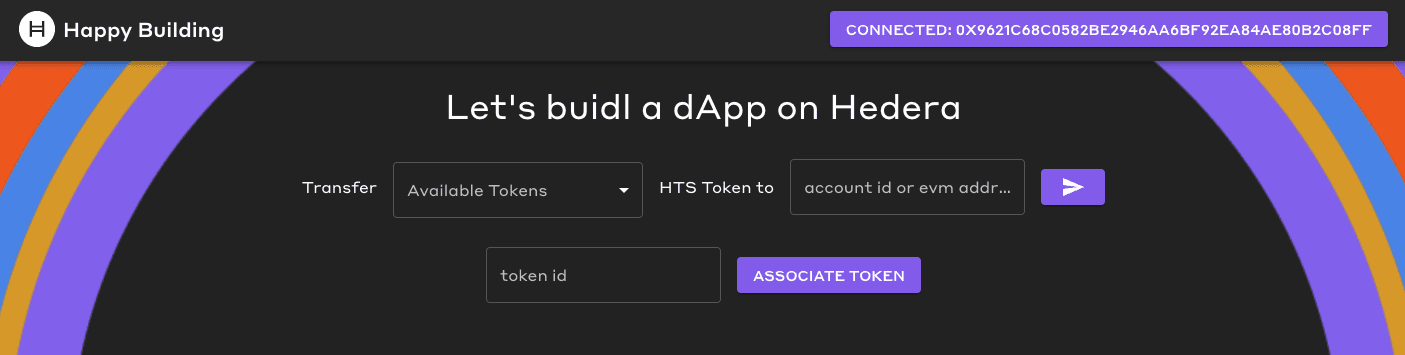
Completed dApp
We choose to scaffold our project by using the CRA Hedera DApp template, as it offers:
- Multi-wallet integration out of the box (HashPack, Blade, and MetaMask)
- Mirror Node Client
- State management via React Context
- Material UI
- Choice of TypeScript or JavaScript
This custom template eliminates setup overhead and allows you to dive straight into the core features of your project.
The complete TypeScript DApp can be found: https://github.com/hedera-dev/…
The complete JavaScript DApp can be found: https://github.com/hedera-dev/…
Scaffold your project
To begin, execute the following command, replacing
<my-app-name>
with the directory name you wish to create for the new project:

npx create-react-app --template git+ssh://git@github.com/hedera-dev/cra-hedera-dapp-template.git
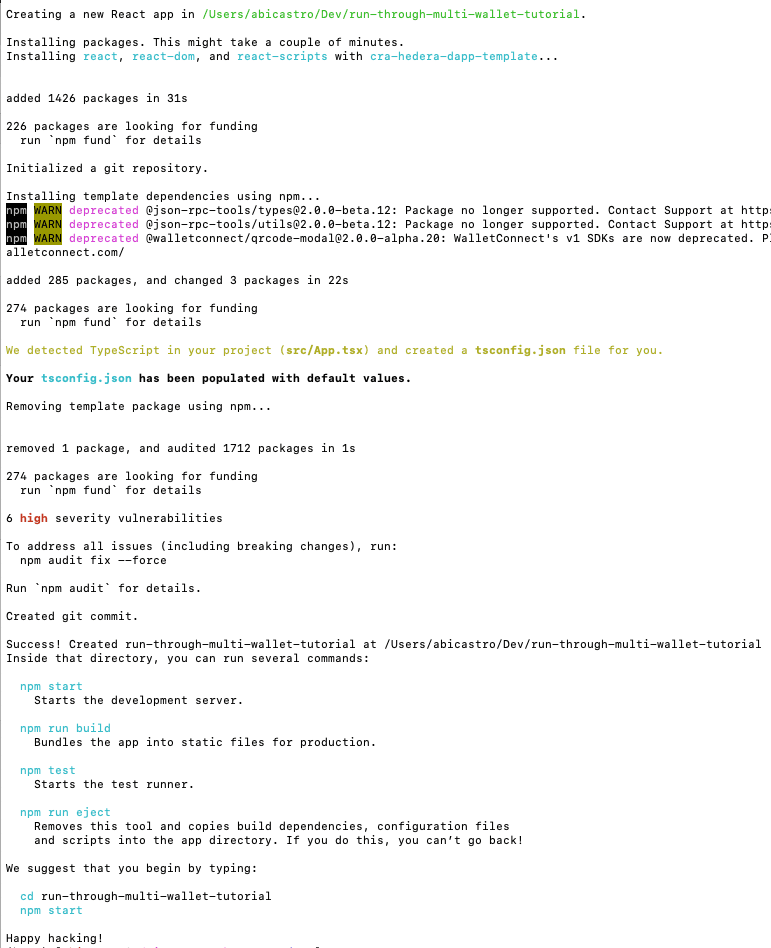
Output when scaffolding your project
This command will generate a Create React App project with the Hedera DApp template. Once the project is generated, you can open it in your preferred code editor.
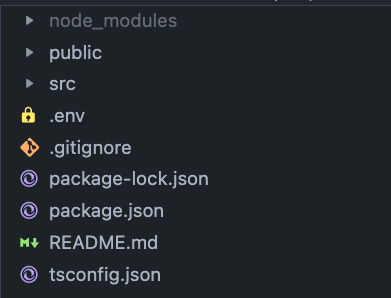
Create React App Hedera DApp Template File Directory
Fetching Token Data: Writing Mirror Node API Queries
Mirror nodes offer access to historical data from the public ledger while optimizing the utilization of network resources. You can effortlessly retrieve essential information like transactions, records, events, and balances. Mirror Node API docs are found here.
The template includes a mirror node client located at
src/services/wallets/mirrorNodeClient.ts
This client is specifically configured to target Testnet and provides a predefined query for retrieving account information. We will utilize and expand upon this file throughout the tutorial to help us obtain information about the tokens we currently own.
import { AccountId } from "@hashgraph/sdk";
import { NetworkConfig } from "../../config";

export class MirrorNodeClient {
  url: string;
  constructor(networkConfig: NetworkConfig) {
    this.url = networkConfig.mirrorNodeUrl;
  }

  async getAccountInfo(accountId: AccountId) {
    const accountInfo = await fetch(`${this.url}/api/v1/accounts/${accountId}`, { method: "GET" });
    const accountInfoJson = await accountInfo.json();
    return accountInfoJson;
  }
}
Query Account Token Balances by Account ID
The information we want to pull from the mirror node is as follows:
- What tokens do we currently own?
- How many of those tokens do we own?
A token is uniquely identified by its token ID, and we will refer to the number of tokens we own as a balance.
To represent the shape of data returned by our mirror node query, let’s create an interface outside of the MirrorNodeClient class in
src/services/wallets/mirrorNodeClient.ts
export interface MirrorNodeAccountTokenBalance {
  balance: number,
  token_id: string,
}
This interface will allow us to define the specific data fields we need for our DApp, excluding any additional data returned by the HTTP response that is not relevant to our use case.
Next, within the MirrorNodeClient class, construct an HTTP GET request using fetch and call the following Mirror Node API endpoint:
/api/v1/accounts/{idOrAliasorEVMAddress}/tokens?limit=100
 // Purpose: get token balances for an account
 // Returns: an array of MirrorNodeAccountTokenBalance
 async getAccountTokenBalances(accountId: AccountId) {
   // get token balances
   const tokenBalanceInfo = await fetch(`${this.url}/api/v1/accounts/${accountId}/tokens?limit=100`, { method: "GET" });
   const tokenBalanceInfoJson = await tokenBalanceInfo.json();

   const tokenBalances = [...tokenBalanceInfoJson.tokens] as MirrorNodeAccountTokenBalance[];

   // because the mirror node API paginates results, we need to check if there are more results
   // if links.next is not null, then there are more results and we need to fetch them until links.next is null
   let nextLink = tokenBalanceInfoJson.links.next;
   while (nextLink !== null) {
     const nextTokenBalanceInfo = await fetch(`${this.url}${nextLink}`, { method: "GET" });
     const nextTokenBalanceInfoJson = await nextTokenBalanceInfo.json();
     tokenBalances.push(...nextTokenBalanceInfoJson.tokens);
     nextLink = nextTokenBalanceInfoJson.links.next;
   }

   return tokenBalances;
 }
The HTTP GET request returns the response in JSON format. We store the JSON response in the variable
tokenBalanceInfoJson
.
Then cast
tokenBalanceInfoJson.tokens
array to
MirrorNodeAccountTokenBalance[]
.
This allows us to work with the token balance data in a strongly typed manner, making it easier to manipulate and use in our DApp.
It is important to note that the Mirror Node API paginates its results. To ensure we fetch all the token balance information, we will check the
links.next
field.
Once
links.next
is null, we can be certain that we have retrieved all the relevant token balance information. Finally, this function will return an array of
MirrorNodeAccountTokenBalance
containing the complete set of token balance data.
Query Token Information by Token ID
In addition to balance and token ID, we need more information about the tokens.
We want to know:
- What type of token is it? Non-Fungible Token (NFT) or Fungible Token (FT)?
- How many decimals does our FT have?
- What is the token name and symbol?
We must construct a new HTTP request to query the mirror node for this token information.
In
src/services/wallets/mirrorNodeClient.ts
, under the
MirrorNodeAccountTokenBalance
interface, create a new interface to represent the shape of data we get from our new mirror node query.
export interface MirrorNodeTokenInfo {
  type: 'FUNGIBLE_COMMON' | 'NON_FUNGIBLE_UNIQUE',
  decimals: string,
  name: string,
  symbol: string
  token_id: string,
}
Remember that this HTTP response will return additional data, and our interface only reflects the necessary data we need for our DApp.
Next, construct the HTTP GET request using fetch and call the following Mirror Node API endpoint:
/api/v1/tokens/{tokenId}
// Purpose: get token info for a token
// Returns: a MirrorNodeTokenInfo
async getTokenInfo(tokenId: string) {
  const tokenInfo = await fetch(`${this.url}/api/v1/tokens/${tokenId}`, { method: "GET" });
  const tokenInfoJson = await tokenInfo.json() as MirrorNodeTokenInfo;
  return tokenInfoJson;
}
Like our previous function, after receiving the HTTP response, we parse the JSON data using the
.json()
method. Then, we explicitly cast the parsed data as MirrorNodeTokenInfo type.
Query Account NFT Information by Account ID
In our previous function, we obtained token information; our next objective is to retrieve an account’s NFT information. We will construct a separate HTTP request to fetch all the NFT information on our account.
What we want to know is:
- Which NFT serial numbers do we own?
Create a new interface to represent what the new HTTP response returns.
export interface MirrorNodeNftInfo {
  token_id: string,
  serial_number: number,
}
Then, construct an HTTP GET request and call the Mirror Node API endpoint:
/api/v1/accounts/{accountId}/nfts?limit=100
// Purpose: get NFT Infor for an account
// Returns: an array of NFTInfo
async getNftInfo(accountId: AccountId) {
  const nftInfo = await fetch(`${this.url}/api/v1/accounts/${accountId}/nfts?limit=100`, { method: "GET" });
  const nftInfoJson = await nftInfo.json();

  const nftInfos = [...nftInfoJson.nfts] as MirrorNodeNftInfo[];

  // because the mirror node API paginates results, we need to check if there are more results
  // if links.next is not null, then there are more results and we need to fetch them until links.next is null
  let nextLink = nftInfoJson.links.next;
  while (nextLink !== null) {
    const nextNftInfo = await fetch(`${this.url}${nextLink}`, { method: "GET" });
    const nextNftInfoJson = await nextNftInfo.json();
    nftInfos.push(...nextNftInfoJson.nfts);
    nextLink = nextNftInfoJson.links.next;
  }
  return nftInfos;
}
Similar to our `getAccountTokenBalances()` function, we must ensure we fetch all the token balance information. We will check the `links.next` field until it is null.
Unify Account Token Balances and Token Information through Query Data Aggregation
We need to combine all of our HTTP response data in order to display our available tokens in our DApp. Let’s create the following interface to represent the combined data.
export interface MirrorNodeAccountTokenBalanceWithInfo extends MirrorNodeAccountTokenBalance {
  info: MirrorNodeTokenInfo,
  nftSerialNumbers?: number[],
}
Finally, we will create a function that combines token balances, token information, and NFT information. The function will perform the following main steps:
- Retrieve all token balances for the specified account.
- Fetch detailed token information for each token.
- Retrieve NFT information for the account.
- Create a mapping of token IDs to their respective NFT serial numbers.
- Combine token balances, token information, and NFT information.
- Return the combined data of type MirrorNodeAccountTokenBalance.
// Purpose: get token balances for an account with token info in order to display token balance, token type, decimals, etc.
// Returns: an array of MirrorNodeAccountTokenBalanceWithInfo
async getAccountTokenBalancesWithTokenInfo(accountId: AccountId): Promise {
  //1.  Retrieve all token balances in the account
  const tokens = await this.getAccountTokenBalances(accountId);
  //2. Create a map of token IDs to token info and fetch token info for each token
  const tokenInfos = new Map();
  for (const token of tokens) {
    const tokenInfo = await this.getTokenInfo(token.token_id);
    tokenInfos.set(tokenInfo.token_id, tokenInfo);
  }

  //3. Fetch all NFT info in account
  const nftInfos = await this.getNftInfo(accountId);

  //4. Create a map of token Ids to arrays of serial numbers
  const tokenIdToSerialNumbers = new Map();
  for (const nftInfo of nftInfos) {
    const tokenId = nftInfo.token_id;
    const serialNumber = nftInfo.serial_number;

    // if we haven't seen this token_id before, create a new array with the serial number
    if (!tokenIdToSerialNumbers.has(tokenId)) {
      tokenIdToSerialNumbers.set(tokenId, [serialNumber]);
    } else {
      // if we have seen this token_id before, add the serial number to the array
      tokenIdToSerialNumbers.get(tokenId)!.push(serialNumber);
    }
  }

  //5. Combine token balances, token info, and NFT info and return
  return tokens.map(token => {
    return {
      ...token,
      info: tokenInfos.get(token.token_id)!,
      nftSerialNumbers: tokenIdToSerialNumbers.get(token.token_id)
    }
  });
}
Below is the complete
mirrorNodeClient.ts
file, which includes all the functions we have created so far to interact with the Mirror Node API and retrieve the necessary data for our DApp. The file should look like this at this stage of the tutorial.
import { AccountId } from "@hashgraph/sdk";
import { NetworkConfig } from "../../config";

export interface MirrorNodeAccountTokenBalance {
  balance: number,
  token_id: string,
}

export interface MirrorNodeTokenInfo {
  type: 'FUNGIBLE_COMMON' | 'NON_FUNGIBLE_UNIQUE',
  decimals: string,
  name: string,
  symbol: string
  token_id: string,
}

export interface MirrorNodeNftInfo {
  token_id: string,
  serial_number: number,
}

export interface MirrorNodeAccountTokenBalanceWithInfo extends MirrorNodeAccountTokenBalance {
  info: MirrorNodeTokenInfo,
  nftSerialNumbers?: number[],
}

export class MirrorNodeClient {
  url: string;
  constructor(networkConfig: NetworkConfig) {
    this.url = networkConfig.mirrorNodeUrl;
  }


  // Purpose: get token balances for an account
  // Returns: an array of MirrorNodeAccountTokenBalance
  async getAccountTokenBalances(accountId: AccountId) {
    // get token balances
    const tokenBalanceInfo = await fetch(`${this.url}/api/v1/accounts/${accountId}/tokens?limit=100`, { method: "GET" });
    const tokenBalanceInfoJson = await tokenBalanceInfo.json();

    const tokenBalances = [...tokenBalanceInfoJson.tokens] as MirrorNodeAccountTokenBalance[];

    // because the mirror node API paginates results, we need to check if there are more results
    // if links.next is not null, then there are more results and we need to fetch them until links.next is null
    let nextLink = tokenBalanceInfoJson.links.next;
    while (nextLink !== null) {
      const nextTokenBalanceInfo = await fetch(`${this.url}${nextLink}`, { method: "GET" });
      const nextTokenBalanceInfoJson = await nextTokenBalanceInfo.json();
      tokenBalances.push(...nextTokenBalanceInfoJson.tokens);
      nextLink = nextTokenBalanceInfoJson.links.next;
    }

    return tokenBalances;
  }

  // Purpose: get token info for a token
  // Returns: a MirrorNodeTokenInfo
  async getTokenInfo(tokenId: string) {
    const tokenInfo = await fetch(`${this.url}/api/v1/tokens/${tokenId}`, { method: "GET" });
    const tokenInfoJson = await tokenInfo.json() as MirrorNodeTokenInfo;
    return tokenInfoJson;
  }

  // Purpose: get NFT Infor for an account
  // Returns: an array of NFTInfo
  async getNftInfo(accountId: AccountId) {
    const nftInfo = await fetch(`${this.url}/api/v1/accounts/${accountId}/nfts?limit=100`, { method: "GET" });
    const nftInfoJson = await nftInfo.json();

    const nftInfos = [...nftInfoJson.nfts] as MirrorNodeNftInfo[];

    // because the mirror node API paginates results, we need to check if there are more results
    // if links.next is not null, then there are more results and we need to fetch them until links.next is null
    let nextLink = nftInfoJson.links.next;
    while (nextLink !== null) {
      const nextNftInfo = await fetch(`${this.url}${nextLink}`, { method: "GET" });
      const nextNftInfoJson = await nextNftInfo.json();
      nftInfos.push(...nextNftInfoJson.nfts);
      nextLink = nextNftInfoJson.links.next;
    }
    return nftInfos;
  }

  // Purpose: get token balances for an account with token info in order to display token balance, token type, decimals, etc.
  // Returns: an array of MirrorNodeAccountTokenBalanceWithInfo
  async getAccountTokenBalancesWithTokenInfo(accountId: AccountId): Promise {
    //1.  Retrieve all token balances in the account
    const tokens = await this.getAccountTokenBalances(accountId);
    //2. Create a map of token IDs to token info and fetch token info for each token
    const tokenInfos = new Map();
    for (const token of tokens) {
      const tokenInfo = await this.getTokenInfo(token.token_id);
      tokenInfos.set(tokenInfo.token_id, tokenInfo);
    }

    //3. Fetch all NFT info in account
    const nftInfos = await this.getNftInfo(accountId);

    //4. Create a map of token Ids to arrays of serial numbers
    const tokenIdToSerialNumbers = new Map();
    for (const nftInfo of nftInfos) {
      const tokenId = nftInfo.token_id;
      const serialNumber = nftInfo.serial_number;

      // if we haven't seen this token_id before, create a new array with the serial number
      if (!tokenIdToSerialNumbers.has(tokenId)) {
        tokenIdToSerialNumbers.set(tokenId, [serialNumber]);
      } else {
        // if we have seen this token_id before, add the serial number to the array
        tokenIdToSerialNumbers.get(tokenId)!.push(serialNumber);
      }
    }

    //5. Combine token balances, token info, and NFT info and return
    return tokens.map(token => {
      return {
        ...token,
        info: tokenInfos.get(token.token_id)!,
        nftSerialNumbers: tokenIdToSerialNumbers.get(token.token_id)
      }
    });
  }

  async getAccountInfo(accountId: AccountId) {
    const accountInfo = await fetch(`${this.url}/api/v1/accounts/${accountId}`, { method: "GET" });
    const accountInfoJson = await accountInfo.json();
    return accountInfoJson;
  }

}
Next, we will utilize these functions to populate our drop-down menu with the retrieved token data.
Create the Available Token Drop-Down Menu
In this next section, we will dive into the Home.tsx file and utilize the necessary functions to populate a drop-down menu with the available token information of the connected account. The template provides a wallet interface that handles the supported multiple wallets and is already integrated into the project, simplifying the development process.
Replace the existing code in
src/pages/Home.tsx
with the following code:
import { MenuItem, TextField, Typography } from "@mui/material";
import { Stack } from "@mui/system";
import { useWalletInterface } from "../services/wallets/useWalletInterface";
import { useEffect, useState } from "react";
import { AccountId } from "@hashgraph/sdk";
import { MirrorNodeAccountTokenBalanceWithInfo, MirrorNodeClient } from "../services/wallets/mirrorNodeClient";
import { appConfig } from "../config";
const UNSELECTED_SERIAL_NUMBER = -1;
export default function Home() {
const { walletInterface, accountId } = useWalletInterface();
const [amount, setAmount] = useState(0);
// include all of this necessary for dropdown
const [availableTokens, setAvailableTokens] = useState([]);
const [selectedTokenId, setSelectedTokenId] = useState('');
const [serialNumber, setSerialNumber] = useState(UNSELECTED_SERIAL_NUMBER);
// include all of this necessary for dropdown
// Purpose: Get the account token balances with token info for the current account and set them to state
useEffect(() => {
if (accountId === null) {
return;
}
const mirrorNodeClient = new MirrorNodeClient(appConfig.networks.testnet);
// Get token balance with token info for the current account
mirrorNodeClient.getAccountTokenBalancesWithTokenInfo(AccountId.fromString(accountId)).then((tokens) => {
// set to state
setAvailableTokens(tokens);
console.log(tokens);
}).catch((error) => {
console.error(error);
});
}, [accountId])
// include all of this necessary for dropdown
// Filter out tokens with a balance of 0
const tokensWithNonZeroBalance = availableTokens.filter((token) => token.balance > 0);
// include all of this necessary for dropdown
// Get the selected token balance with info
const selectedTokenBalanceWithInfo = availableTokens.find((token) => token.token_id === selectedTokenId);
// include all of this necessary for dropdown
// reset amount and serial number when token id changes
useEffect(() => {
setAmount(0);
setSerialNumber(UNSELECTED_SERIAL_NUMBER);
}, [selectedTokenId]);
return (
Let's buidl a dApp on Hedera
{walletInterface !== null && (
<>
Transfer
setSelectedTokenId(e.target.value)}
sx={{
width: '250px',
height: '50px',
}}
>
{tokensWithNonZeroBalance.map((token) => {
const tokenBalanceAdjustedForDecimals = token.balance / Math.pow(10, Number.parseInt(token.info.decimals));
return (
);
}
)}
{selectedTokenBalanceWithInfo?.info?.type === "NON_FUNGIBLE_UNIQUE" && (
setSerialNumber(Number.parseInt(e.target.value))}
sx={{
width: '190px',
height: '50px',
}}
>
{selectedTokenBalanceWithInfo.nftSerialNumbers?.map((serialNumber) => {
return (
);
}
)}
)}
{selectedTokenBalanceWithInfo?.info?.type === "FUNGIBLE_COMMON" && (
setAmount(parseInt(e.target.value))}
sx={{
maxWidth: '100px'
}}
/>
)}
)}
)
}
The crucial part of the code is found within the
useEffect()
hook. In this section, we invoke the
getAccountTokenBalanceswithTokenInfo()
function and update the state variable
availableTokens
with the returned data. We then apply a filter to remove tokens with a balance of 0 from the
availableTokens
array.
Within the React code, we introduced a
TextField
component with a select attribute to create a drop-down menu. We use the filtered
availableTokens
to populate the drop-down options. Depending on whether we select an FT or an NFT, we dynamically render either a
TextField
of type number or a drop-down menu displaying the available serial numbers, respectively.
Create Sender/Receiver Accounts and Start the Project
To continue with the rest of this tutorial, we need to create sender and Receiver accounts that will be used for the upcoming steps. You will leverage the following repository to create these accounts. While we will primarily focus on completing the tutorial using the MetaMask wallet, feel free to explore the option of using HashPack or Blade as well. This flexibility ensures you can continue the tutorial using the wallet that best suits your preferences.
To proceed, follow these steps:
- Create a new directory and change into that directory.
- Create a new file named .env in the directory with the following fields:
MY_ACCOUNT_ID=
MY_PRIVATE_KEY=
3. Execute the following command in that directory
npx github:/hedera-dev/hedera-create-account-and-token-helper
Note: Private Keys should never be shared publicly.
You will see an output similar to the following:
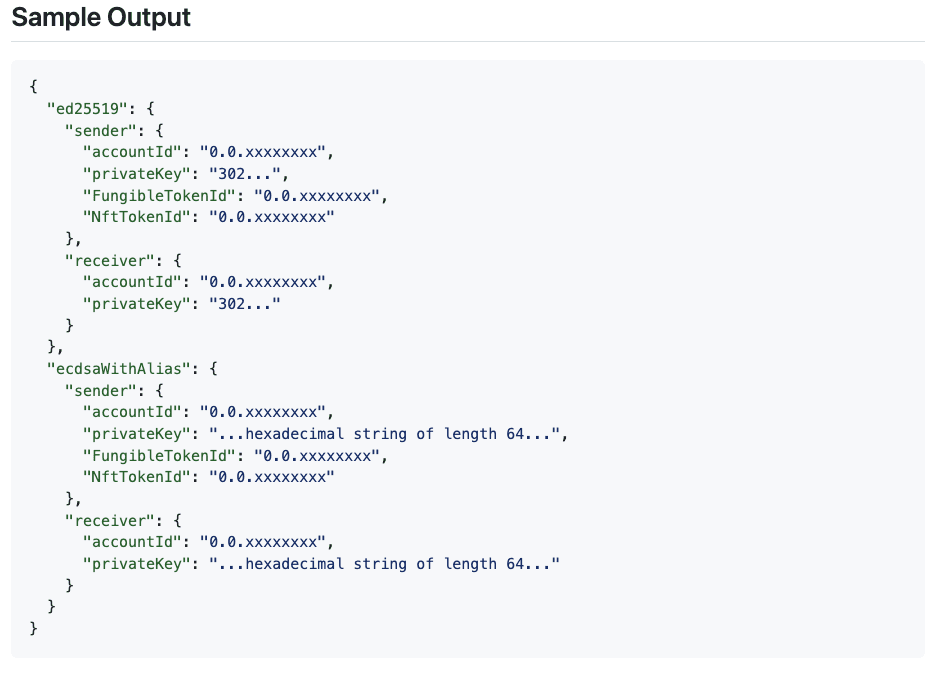
Sample Output
Keep this terminal open for the remainder of the tutorial, as you will refer back to it.
Next, import the ECDSA Sender and ECDSA Receiver accounts into MetaMask using their respective private keys.
Once both accounts are successfully imported, you can start the DApp by executing the following command:
npm run start
This will start the DApp on port 3000.
Note: To connect to Blade, it is necessary to use HTTPS. The provided template already includes HTTPS support. When starting the DApp, you will encounter a Privacy error in the browser about your connection not being private due to not having a valid SSL certificate. To proceed, click the ‘Advanced’ option and then select ‘Proceed to localhost.’
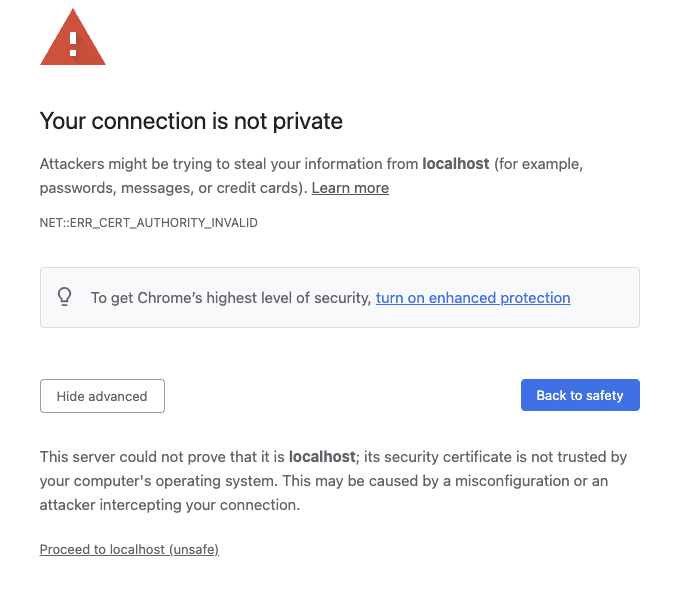
Connection is not Private Browser Warning

DApp Homepage
Connect to DApp as the Sender
The template provides the code to transfer FTs and NFTs to a specific account ID or EVM address. You can find the implementation specific to MetaMask at
src/services/wallets/metamask/metamaskClient.tsx
.
Moving forward with the tutorial, click the ‘Connect Wallet’ button and select MetaMask to connect with the Sender.
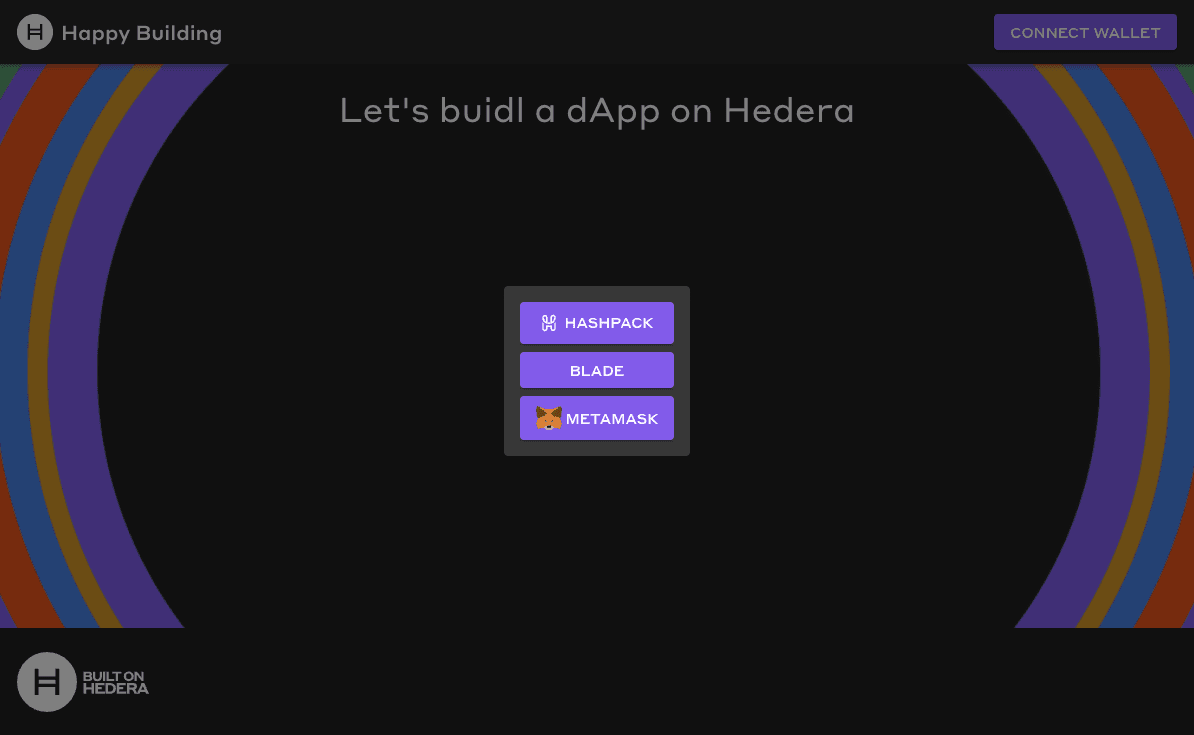
Choose your wallet
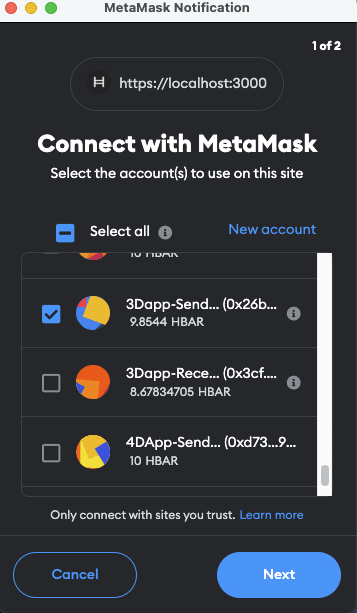
Select the Sender Account
After a successful connection, you will see the following screen:
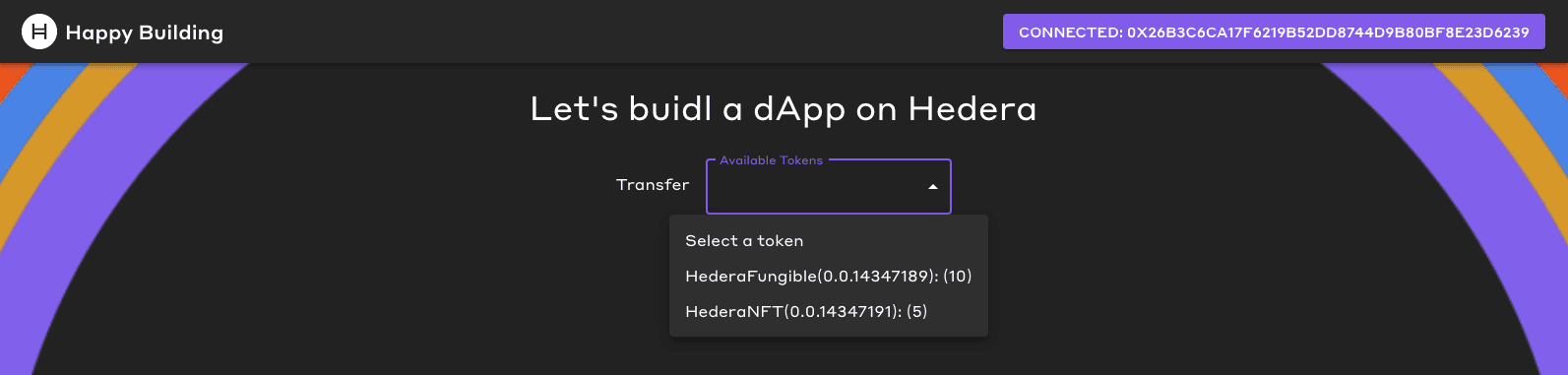
Sender’s Available Tokens
Before we transfer, implement a function that verifies whether the Receiver account is associated with the token we intend to transfer. If the receiver is not associated with the token, then the transfer will fail. Needing to associate with a token before receiving it prevents a user from receiving unwanted tokens.
In
src/services/mirrorNodeClient.ts
add the following code:
// Purpose: check if an account is associated with a token
// Returns: true if the account is associated with the token, false otherwise
async isAssociated(accountId: AccountId, tokenId: string) {
  const accountTokenBalance = await this.getAccountTokenBalances(accountId);
  return accountTokenBalance.some(token => token.token_id === tokenId);
}
Let’s attempt to send the token to the Receiver account. We need to add a Send button to our
Home.tsx
component. Replace the existing code in
src/pages/Home.tsx
with the following code:
import { Button, MenuItem, TextField, Typography } from "@mui/material";
import { Stack } from "@mui/system";
import { useWalletInterface } from "../services/wallets/useWalletInterface";
import SendIcon from '@mui/icons-material/Send';
import { useEffect, useState } from "react";
import { AccountId, TokenId } from "@hashgraph/sdk";
import { MirrorNodeAccountTokenBalanceWithInfo, MirrorNodeClient } from "../services/wallets/mirrorNodeClient";
import { appConfig } from "../config";
const UNSELECTED_SERIAL_NUMBER = -1;
export default function Home() {
const { walletInterface, accountId } = useWalletInterface();
const [toAccountId, setToAccountId] = useState("");
const [amount, setAmount] = useState(0);
const [availableTokens, setAvailableTokens] = useState([]);
const [selectedTokenId, setSelectedTokenId] = useState('');
const [serialNumber, setSerialNumber] = useState(UNSELECTED_SERIAL_NUMBER);
const [tokenIdToAssociate, setTokenIdToAssociate] = useState("");
// Purpose: Get the account token balances with token info for the current account and set them to state
useEffect(() => {
if (accountId === null) {
return;
}
const mirrorNodeClient = new MirrorNodeClient(appConfig.networks.testnet);
// Get token balance with token info for the current account
mirrorNodeClient.getAccountTokenBalancesWithTokenInfo(AccountId.fromString(accountId)).then((tokens) => {
// set to state
setAvailableTokens(tokens);
console.log(tokens);
}).catch((error) => {
console.error(error);
});
}, [accountId])
// Filter out tokens with a balance of 0
const tokensWithNonZeroBalance = availableTokens.filter((token) => token.balance > 0);
// include all of this necessary for dropdown
// Get the selected token balance with info
const selectedTokenBalanceWithInfo = availableTokens.find((token) => token.token_id === selectedTokenId);
// reset amount and serial number when token id changes
useEffect(() => {
setAmount(0);
setSerialNumber(UNSELECTED_SERIAL_NUMBER);
}, [selectedTokenId]);
return (
Let's buidl a dApp on Hedera
{walletInterface !== null && (
<>
Transfer
setSelectedTokenId(e.target.value)}
sx={{
width: '250px',
height: '50px',
}}
>
{tokensWithNonZeroBalance.map((token) => {
const tokenBalanceAdjustedForDecimals = token.balance / Math.pow(10, Number.parseInt(token.info.decimals));
return (
);
}
)}
{selectedTokenBalanceWithInfo?.info?.type === "NON_FUNGIBLE_UNIQUE" && (
setSerialNumber(Number.parseInt(e.target.value))}
sx={{
width: '190px',
height: '50px',
}}
>
{selectedTokenBalanceWithInfo.nftSerialNumbers?.map((serialNumber) => {
return (
);
}
)}
)}
{selectedTokenBalanceWithInfo?.info?.type === "FUNGIBLE_COMMON" && (
setAmount(parseInt(e.target.value))}
sx={{
maxWidth: '100px'
}}
/>
)}
HTS Token
to
setToAccountId(e.target.value)}
label='account id or evm address'
/>
)}
)
}
There are two crucial points in the new code we added. First, within the
<Button>
component’s
onClick
event, we invoke the
isAssociated()
function and return early if it returns false. This check ensures that the Receiver account has been associated with the token.
The second important part is the formula used to account for token decimals, which is as follows:
const amountWithDecimals = amount * Math.pow(10, Number.parseInt(selectedTokenBalanceWithInfo.info.decimals));
In the case of FTs, they often have a decimal representation to denote the token’s smallest unit. For example, consider an FT with a decimal value of 2. In this case, if we have an amount of 10, the formula will convert it to 1000 (10 * 10^2) before transferring the tokens. This adjustment is necessary to ensure accurate value representation and compatibility with the token’s decimal system.
Now that we added our necessary components to transfer head over to your browser to see the updated user interface (UI).

Open the inspector tool in your browser and navigate to the console section. Then, copy the ECDSA Receiver account ID. Paste the account ID into the provided text box and select the FT with an amount of 1 to transfer.
Finally, click the Send button. Take note of the message displayed indicating that the receiver is not associated with the provided token ID.

Receiver is not Associated
Associate As the Receiver
To enable the Receiver account to receive an HTS token, it must be associated with the respective token. This association process is facilitated by the
associateToken()
method found in the
metamaskClient.tsx
file located in the
src/services/wallets/metamask
directory.
The
associateToken()
method accepts a
TokenId
as a parameter and converts it into a
ContractId
, allowing you to call
associate
on the token. This functionality highlights the capability of treating HTS tokens in a similar manner to ERC-20 and ERC-721 tokens, made possible by HIP-218. Associating is a unique Hedera functionality and HIP-719 extended the previous functionality of treating HTS ERC tokens to both associate and dissociate functions.
async associateToken(tokenId: TokenId) {
  // send the transaction
  // convert tokenId to contract id
  const hash = await this.executeContractFunction(
    ContractId.fromString(tokenId.toString()),
    'associate',
    new ContractFunctionParameterBuilder(),
    appConfig.constants.METAMASK_GAS_LIMIT_ASSOCIATE
  );

  return hash;
}
We must have the Receiver account associated with the NFT token ID. Let’s continue by disconnecting from the DApp with the current account. You disconnect through the MetaMask extension.
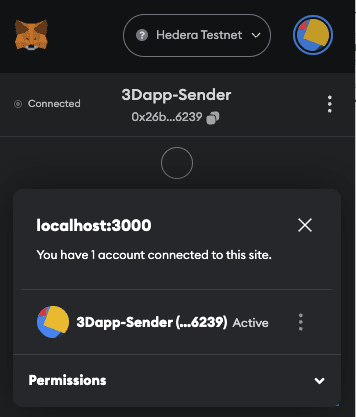
Connect as the Receiver account.
Once connected, your DApp will update, and the drop-down menu will show that the receiver has no available tokens to transfer.

Let’s add the necessary UI components so we can associate. Replace the existing code in
src/pages/Home.tsx
with the following code:
import { Button, MenuItem, TextField, Typography } from "@mui/material";
import { Stack } from "@mui/system";
import { useWalletInterface } from "../services/wallets/useWalletInterface";
import SendIcon from '@mui/icons-material/Send';
import { useEffect, useState } from "react";
import { AccountId, TokenId } from "@hashgraph/sdk";
import { MirrorNodeAccountTokenBalanceWithInfo, MirrorNodeClient } from "../services/wallets/mirrorNodeClient";
import { appConfig } from "../config";
const UNSELECTED_SERIAL_NUMBER = -1;
export default function Home() {
const { walletInterface, accountId } = useWalletInterface();
const [toAccountId, setToAccountId] = useState("");
const [amount, setAmount] = useState(0);
// include all of this necessary for dropdown
const [availableTokens, setAvailableTokens] = useState([]);
const [selectedTokenId, setSelectedTokenId] = useState('');
const [serialNumber, setSerialNumber] = useState(UNSELECTED_SERIAL_NUMBER);
const [tokenIdToAssociate, setTokenIdToAssociate] = useState("");
// include all of this necessary for dropdown
// Purpose: Get the account token balances with token info for the current account and set them to state
useEffect(() => {
if (accountId === null) {
return;
}
const mirrorNodeClient = new MirrorNodeClient(appConfig.networks.testnet);
// Get token balance with token info for the current account
mirrorNodeClient.getAccountTokenBalancesWithTokenInfo(AccountId.fromString(accountId)).then((tokens) => {
// set to state
setAvailableTokens(tokens);
console.log(tokens);
}).catch((error) => {
console.error(error);
});
}, [accountId])
// include all of this necessary for dropdown
// Filter out tokens with a balance of 0
const tokensWithNonZeroBalance = availableTokens.filter((token) => token.balance > 0);
// include all of this necessary for dropdown
// Get the selected token balance with info
const selectedTokenBalanceWithInfo = availableTokens.find((token) => token.token_id === selectedTokenId);
// include all of this necessary for dropdown
// reset amount and serial number when token id changes
useEffect(() => {
setAmount(0);
setSerialNumber(UNSELECTED_SERIAL_NUMBER);
}, [selectedTokenId]);
return (
Let's buidl a dApp on Hedera
{walletInterface !== null && (
<>
Transfer
setSelectedTokenId(e.target.value)}
sx={{
width: '250px',
height: '50px',
}}
>
{tokensWithNonZeroBalance.map((token) => {
const tokenBalanceAdjustedForDecimals = token.balance / Math.pow(10, Number.parseInt(token.info.decimals));
return (
);
}
)}
{selectedTokenBalanceWithInfo?.info?.type === "NON_FUNGIBLE_UNIQUE" && (
setSerialNumber(Number.parseInt(e.target.value))}
sx={{
width: '190px',
height: '50px',
}}
>
{selectedTokenBalanceWithInfo.nftSerialNumbers?.map((serialNumber) => {
return (
);
}
)}
)}
{selectedTokenBalanceWithInfo?.info?.type === "FUNGIBLE_COMMON" && (
setAmount(parseInt(e.target.value))}
sx={{
maxWidth: '100px'
}}
/>
)}
{/* not included in the dropdown stage. this is in the association/send stage */}
HTS Token
to
setToAccountId(e.target.value)}
label='account id or evm address'
/>
setTokenIdToAssociate(e.target.value)}
/>
)}
)
}
After adding the code, you will notice that the UI updates to display a text box and a button specifically for the association process.
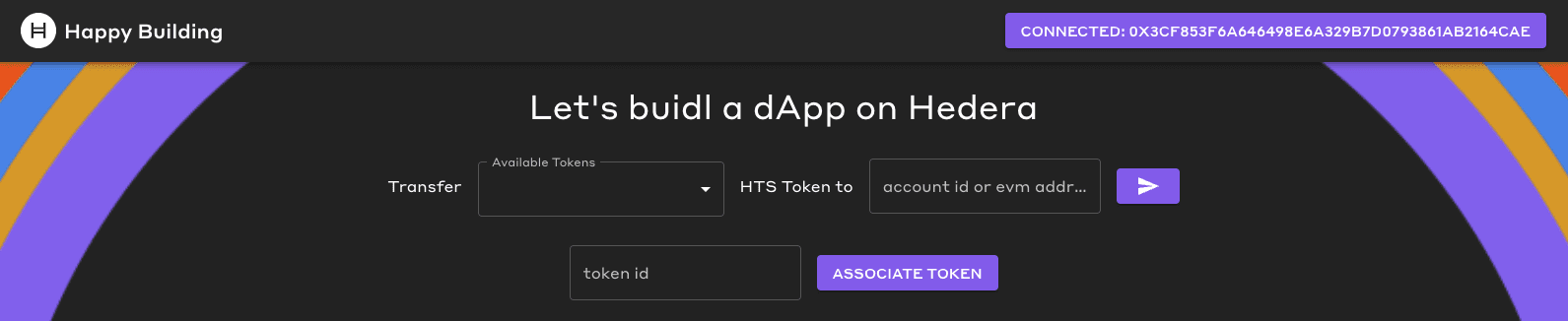
Associate Button Has Been Added
To associate the Receiver account with the HTS token, enter the
NFTTokenID
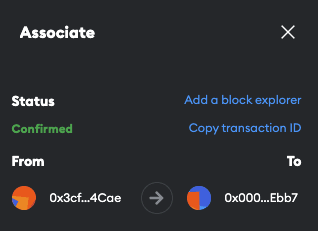
of the Sender’s NFT collection in the token ID textbox and click the Associate button. MetaMask will prompt you to sign the transaction. If the extension doesn’t appear automatically, you may need to open it manually by clicking on the extension.
Note: The template, by default, uses the Hashio JSON RPC Relay URL to work with MetaMask. If you are experiencing degraded performance, I encourage you to follow the steps outlined in this guide to use Arkhia or set up your own local JSON RPC Relay. You can then edit the
src/config/networks.ts
with the new JSON RPC Relay URL.
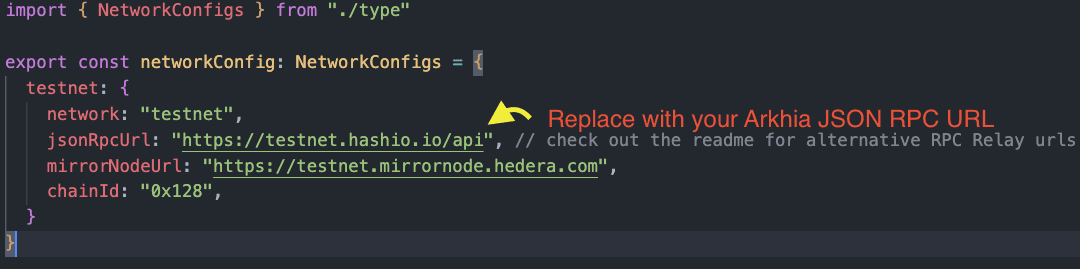
src/config/network.ts is where you can update the JSON RPC Relay URL
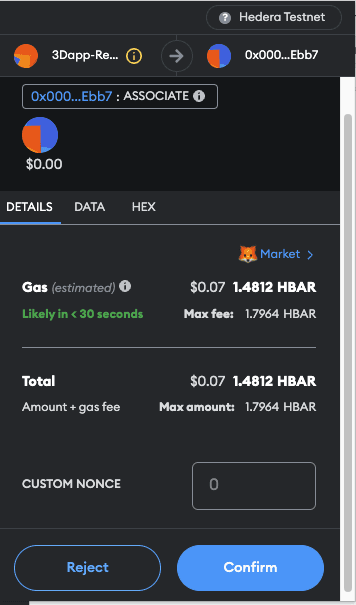
Transfer An NFT as the Sender
Once the Associate transaction is confirmed, disconnect from the current session and reconnect as the Sender account.
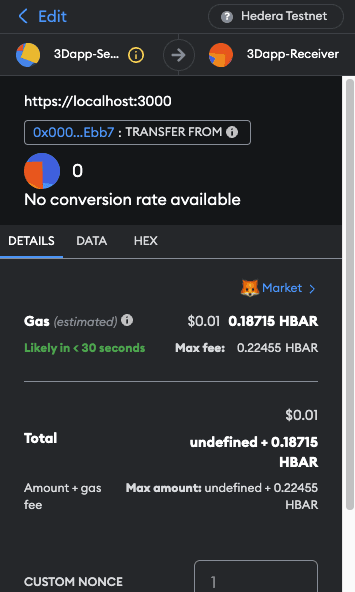
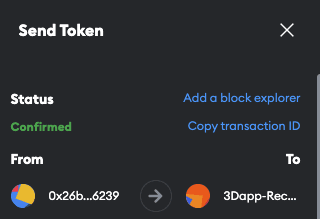
As the Sender, enter the account ID or EVM address of the Receiver account. Select the NFT with serial number 5 from the drop-down menu and click the send button.
Sign the transaction on MetaMask, which will then transfer the NFT from the Sender to the receiver account seamlessly.

Transfer the NFT with Serial Number 5
Verify Receiver Received the NFT
Disconnect as the Sender and reconnect as the Receiver.
Check the drop-down menu to ensure the Receiver account has NFT serial number 5.

Try with HashPack or Blade
Optionally, you can import the ED25519 Sender/Receiver accounts into HashPack and Blade and associate and transfer NFT/FT tokens with those additional wallets.
Congratulations! You have successfully walked through creating a Hedera DApp that transfers HTS tokens to MetaMask, HashPack, and Blade.
Summary
We embarked on an exciting adventure together, using the CRA Hedera DApp template. Along the way, we learned how to write queries to fetch account token balances, token info, and NFT details from the mirror node. We even created a drop-down menu that shows the available token balances. In addition, we added a textbox and a button to associate accounts with token IDs. It was an incredible accomplishment, and I encourage everyone to keep learning!
Continue Learning